· 16 min read
7 Best Pinterest Pin Design Tools in 2026 (Free & Paid)
 Ruslan Saifullin
Key takeaways
- What size should a Pinterest pin be? 2:3, which is 1000 by 1500 pixels, as Pinterest recommends. Taller images can be cut off in the feed. Start every design at that size instead of resizing it at the end.
- What should the text on a pin say? The keyword you chose, early and in few words. Pinterest's ads guidance keeps text overlay to about 10 words. Put the same keyword in the pin's title, description and board name too.
- Which tool is fastest from a blog post? One that reads the page for you. The free InsightPins Pin Generator turns a URL into six 1000x1500 pins from 38 templates, with up to 20 exports a day.
- Is Canva still worth it? Yes, for full design freedom: its free plan has Pinterest pin templates. Resizing a design and scheduling it to Pinterest need Canva Pro, US$144 a year.
- Can Claude or ChatGPT design my pins? ChatGPT makes background images. Claude designs through connectors, including the InsightPins connector, which renders finished pins inside a chat or Claude Code. Pinterest labels images it detects as AI-generated.
Most pins fail before anyone judges the design. They are shown at the width of a thumbnail, between hundreds of others, and a title in a thin script font is a smudge at that size. Pinterest, with 640 million monthly active users (Pinterest Q2 2026 results, SEC filing), is also a search engine, so the pin has a second reader: search, which needs the keyword in words it can match.
So this guide judges every pin design tool on one job: turning one blog post and one keyword into a 1000x1500 pin that carries the keyword and is still readable in the feed. It covers seven tools, free and paid, what each free plan allows, and how to do the same job with ChatGPT or Claude.
- TL;DR: which pin maker fits which job
- What a pin needs before it looks good
- Top pick: the InsightPins Pin Generator
- Pinterest's own pin builder
- General design apps
- Tailwind Create
- Comparison table
- A pin design routine that starts with the keyword
- Designing pins with Claude or ChatGPT
- How to choose a pin design tool
- Conclusion
- Frequently asked questions
TL;DR: Which Pinterest Pin Design Tool Fits Which Job
- Fastest from a blog post, free: the InsightPins Pin Generator. Paste a URL and get six pins to choose from.
- In Claude or Claude Code: the same generator as a connector, or as a plugin with pin design and copywriting skills. Ask for a pin in plain words. Free, 20 renders a day.
- Full design freedom, free: Canva or Adobe Express.
- No extra app: Pinterest's own pin builder, with a text layer and collages.
- Many variations from one URL, inside a scheduler: Tailwind Create, on a paid Tailwind plan.
- An image from a prompt: ChatGPT, with the title added in a design tool afterwards.
What a Pinterest Pin Needs Before It Looks Good
Four things decide whether a pin gets a chance at all. Every tool below is judged on how easily it gets you all four.
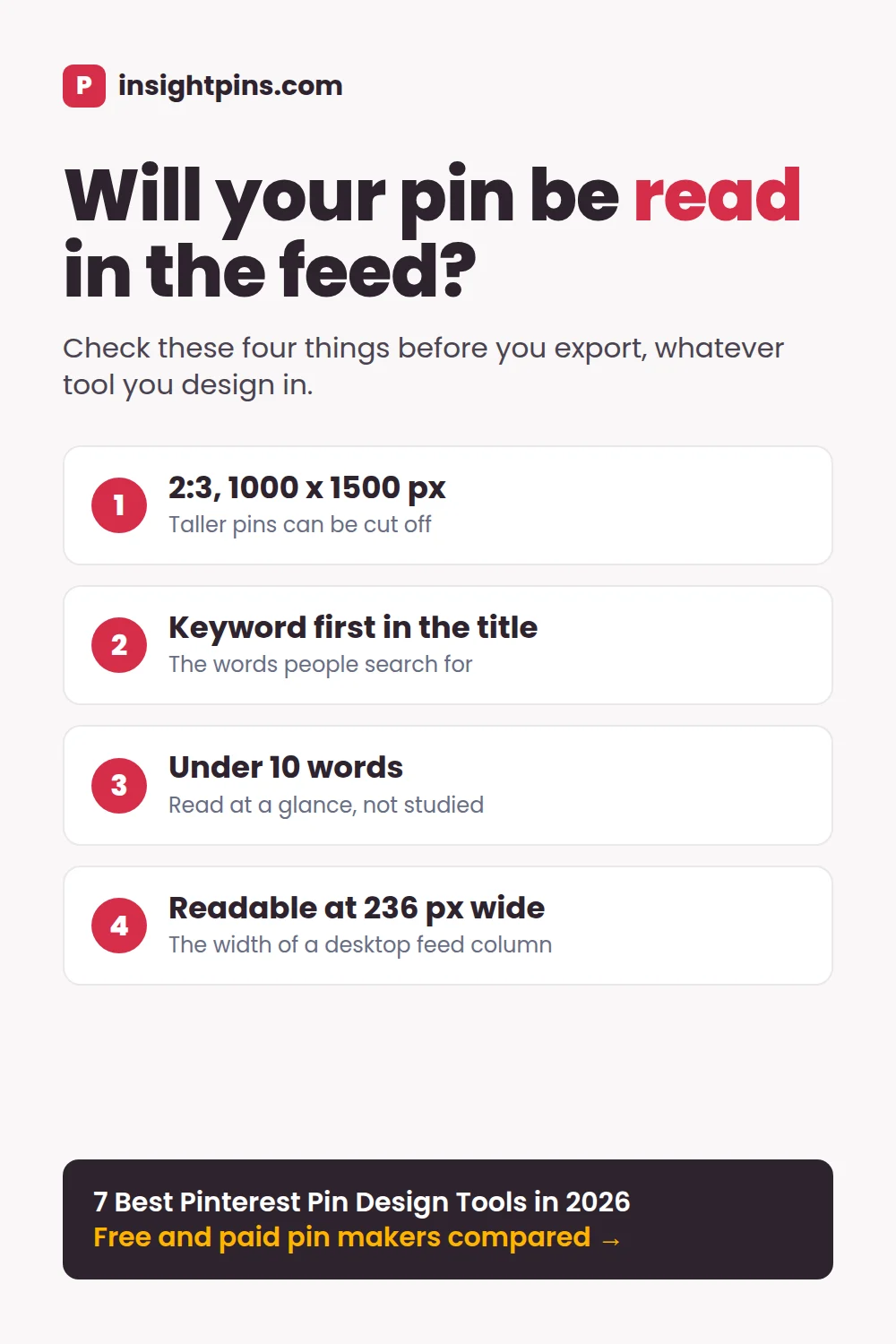
- The right size. Pinterest recommends a 2:3 image, 1000 by 1500 pixels, as PNG or JPEG. Taller images can be cut off in the feed (Pinterest product specs).
- The keyword in the title text, early. Pinterest's creative best practices for ads keep text overlay to about 10 words (Pinterest creative best practices). That guidance is written for ads, but the logic holds for any pin: a short title is read at a glance.
- Readable at feed size. A pin in a desktop feed is about 236 pixels wide, and only a little wider on a phone. Check your title at that size before you export.
- Inside the safe zone. Keep text away from the bottom and the corners, where Pinterest's own buttons sit.
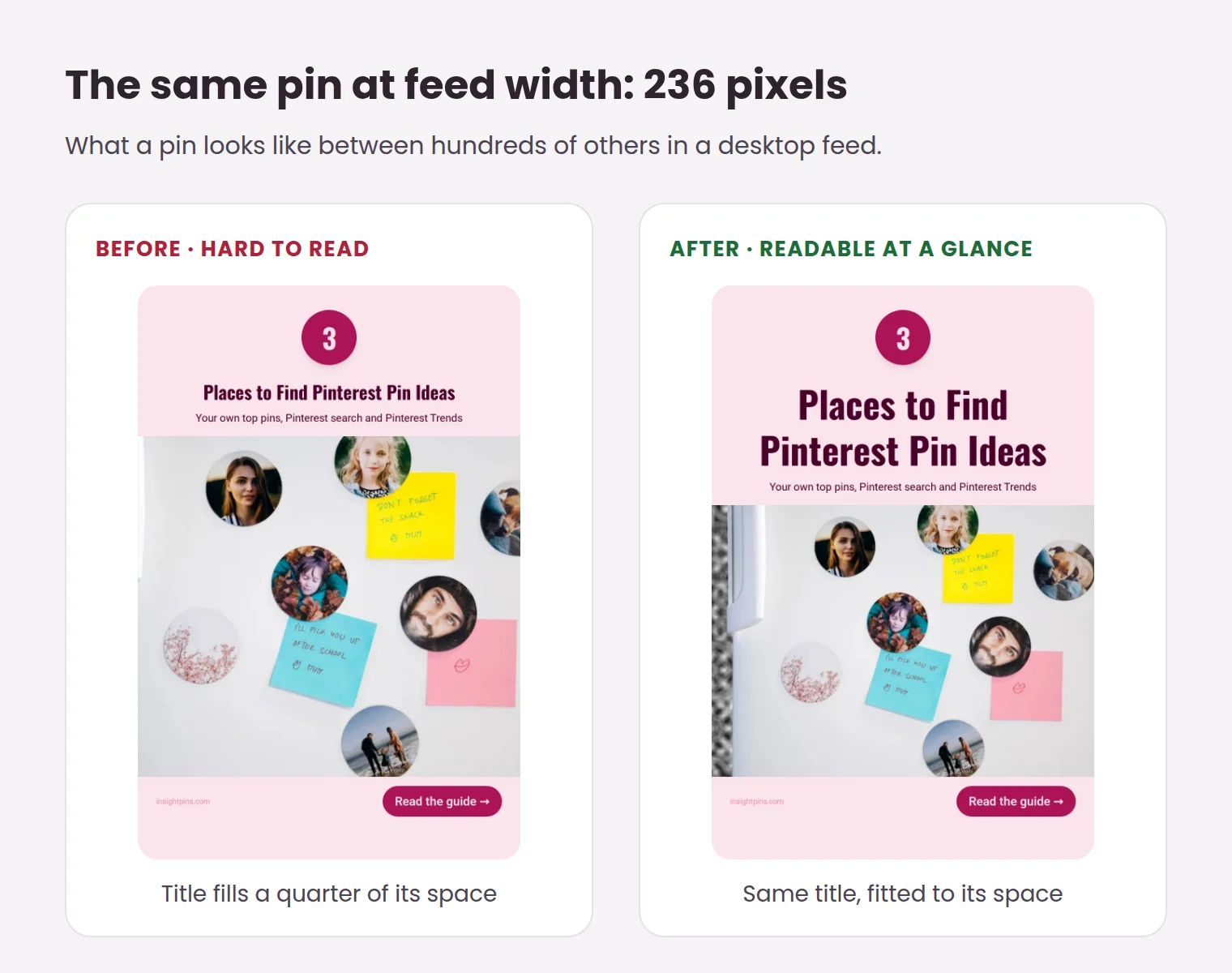
Top Pick: The InsightPins Pin Generator (Free)
Every claim below can be checked on app.insightpins.com itself and in its terms of use. It does one job: turn a page into pins quickly, with the title already readable.
What it does
- Starts from a URL. Paste a blog post, recipe or product page. It reads the title, description and images for you, so there is nothing to copy and paste.
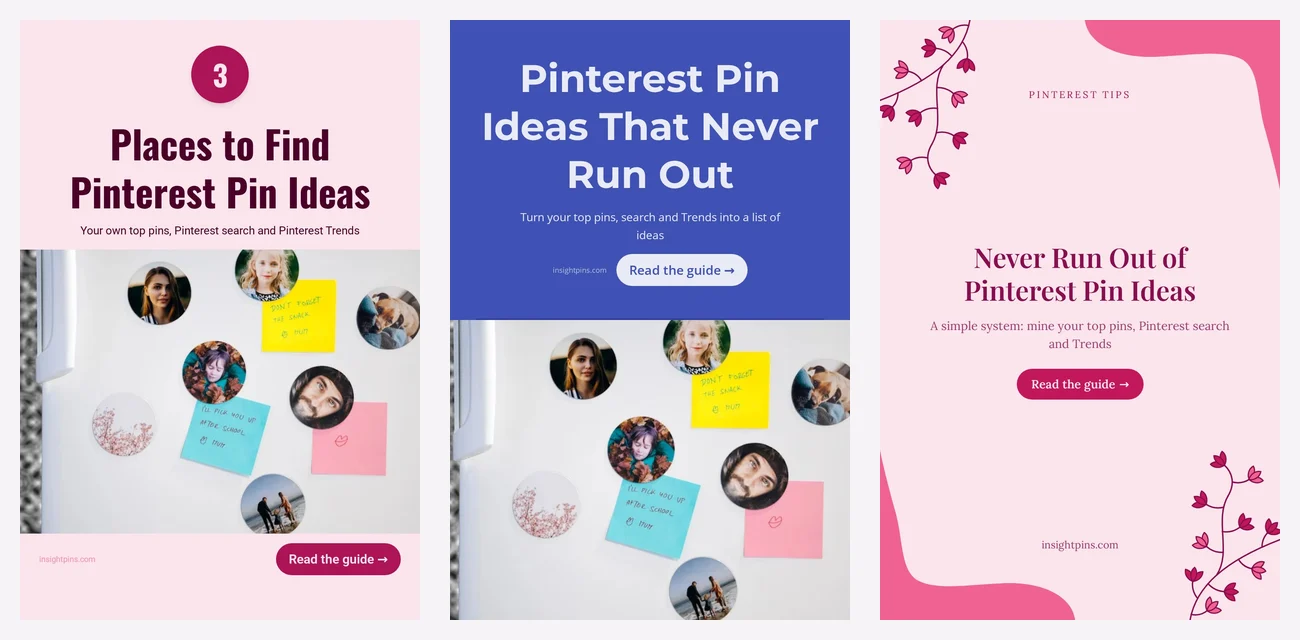
- Six pins at once. It renders six 1000x1500 pins side by side from 38 templates in 6 categories: blog, product, list, quote, recipe and creative. A Randomize button reshuffles every pin you have not locked.
- Templates for the content. Collages with up to four photos, a price tag for products, cook time and servings for recipes, numbered lists and text-only quote pins.
- Style without a canvas. 15 colour palettes and 10 font pairings, plus size controls for the title, description, button and site name.
- Your own photo. Upload one when the page has none worth using. Most templates also work without any photo.
- Clean exports. JPEG at 1000x1500, with no watermark and no account. Signing in with Google lets you save the styles you like.
What it costs
Free. You can export up to 20 pins a day, plus 2 more if you give an email address. Through Claude (see below), you get 20 rendered pins and 10 uploaded photos a day per account, and each image link works for 7 days.
Best for
Bloggers, recipe writers and small shops who want several fresh pins for each post without opening a design app.
Where it falls short
It is templates, not a canvas: you change text, photos, colours, fonts and sizes, not the layout itself. It makes no video pins, and it does not schedule or publish; you download the pins and upload them yourself. Pages that only render in JavaScript, or block automated readers, can come back empty, so upload the photo instead. A photo taken from someone else's page may need a licence or credit before you publish it.
Pinterest's Own Pin Builder
The tool you already have. When you create a pin, you can add a text layer and choose its font, size, alignment, colour and highlight, on desktop as well as in the app (Pinterest help: design a pin). You can also build collages from cutouts, including on business accounts (create a collage).
- Category: a basic editor inside Pinterest.
- Best for: a quick title on a photo you already have.
- Why use it: nothing to install, and the pin is already on Pinterest when you finish.
- Cost: free.
Where it falls short: there are few layouts to start from, and nothing reads your blog post for you. It is a text layer, not a template library.
General Design Apps
These are full design tools that happen to have Pinterest templates. They give you the most freedom and ask the most of your time.
Canva
- Category: drag-and-drop design app with a large template library.
- Best for: anyone who wants full control and a brand kit.
- Why use it: the free plan has a big set of Pinterest pin templates. Canva is also one of Pinterest's named content partners, and its connector works inside Claude and ChatGPT.
- Cost: free plan; Canva Pro is US$144 a year for one person. Magic Resize and scheduling to Pinterest are Pro features (Canva pricing).
The catch is the same freedom: every pin starts from a template you edit by hand, so a batch of ten takes real time.
Adobe Express
- Category: Adobe's template-based design app.
- Best for: designing and scheduling in one free app.
- Why use it: the free plan includes 100,000+ templates, 5GB of storage and a content scheduler that posts to Pinterest, with one account per network (Adobe Express free plan). It also has an app inside ChatGPT.
- Cost: free plan; Premium is US$9.99 a month for individuals, billed monthly (Adobe Express pricing).
Picsart
- Category: photo editor and design app, strongest on mobile.
- Best for: editing the photo itself before it goes on a pin.
- Why use it: free and paid Pinterest pin templates, and Pinterest names it as a content partner alongside Canva.
- Cost: free plan; Pro is US$10.50 a month billed yearly, or US$15 monthly (Picsart pricing).
Tailwind Create
- Category: a pin designer built into a Pinterest scheduler.
- Best for: people who already schedule in Tailwind and want many variations of one post.
- Why use it: it makes many pin designs from one URL or image, and the pins go straight into Tailwind's queue. It also works with Tailwind's Canva app.
- Cost: free to try; limits depend on the account and plan. Its paid Pin Scheduling & Creation plan is US$17.99 a month billed annually, or US$29.99 monthly, per Pinterest account, with 300 credits a month that scheduling and generation both use (Tailwind pricing).
It makes sense as part of Tailwind. If you do not want a scheduler, you are paying for one to get the designer. The InsightPins Pinterest scheduling tools guide covers Tailwind's scheduling side.
Pinterest Pin Design Tools Compared
| Tool | Starts from a URL | 2:3 by default | Free plan | Paid from | Works in Claude |
|---|---|---|---|---|---|
| InsightPins Pin Generator | Yes | Yes, 1000x1500 | 20 exports a day, no watermark | Free | Connector and plugin |
| Pinterest pin builder | No | Your image's shape | Text layer, collages | Free | No |
| Canva | No | Pin templates | Templates; resize and scheduling are Pro | US$144/yr | Connector |
| Adobe Express | No | Pin templates | 100,000+ templates, scheduler | US$9.99/mo | Check the vendor |
| Picsart | No | Pin templates | Free templates and editor | US$10.50/mo yearly | No |
| Tailwind Create | Yes | Yes | Free to try; limits depend on account and plan | US$17.99/mo yearly | No |
| ChatGPT images | No | On request, 1024x1536 | A small daily allowance | ChatGPT plans | No |
Prices and free plans as each vendor's own pages stated them on October 5, 2026. Annual billing shown where the vendor leads with it. They change often; check before you buy.
A Pin Design Routine That Starts with the Keyword
Design is the middle of the job, not the start. Here is a five-step routine that continues the dinner recipe blog from the InsightPins keyword research and analytics guides. The choices in it are illustrative.
Pick the keyword and read what ranks
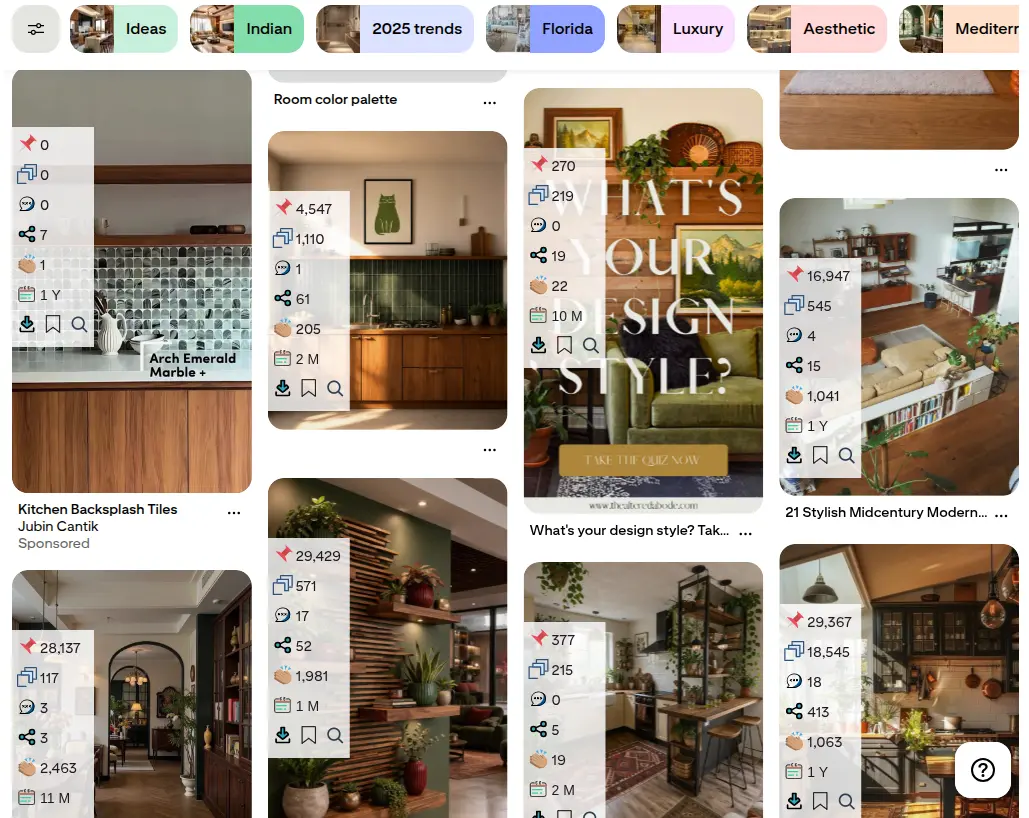
Choose one keyword per pin, then search it on Pinterest and look at the top results. With the free Pin Stats extension you see each pin's saves and creation date as you scroll, so you can tell which formats people actually save: a single photo or a collage, a price in the title or not. On Pin Stats Pro you can sort the whole search by saves and hide AI-generated and ad pins.
Worked example · the dinner recipe blog
The blogger targets cheap dinner ideas. Among the top results, several pins from this year already have hundreds of saves, and most are collages of four to six dishes with a price in the title.
Write the title text first
Before you open any design tool, write the words that go on the pin: the keyword first, under about 10 words, with a concrete promise. Short titles survive the feed; long ones shrink until nobody can read them.
Worked example · the dinner recipe blog
"Dinner inspo" becomes "Cheap Dinner Ideas: 12 Meals Under $3". Seven words, the keyword first, and a number that sets an expectation.
Design two versions
Make one pin in the format that already wins for the keyword and one that is different, so the results tell you something. In the Pin Generator that is two templates from the same URL; in Canva, two templates edited by hand.
Worked example · the dinner recipe blog
A collage of four dishes with the price in the title, and a single photo of the best-looking dish with the same title. Both go out the same week.
Check it at feed size
Zoom out until the pin is about 236 pixels wide, or look at it on your phone. If you cannot read the title in a second, make it shorter or bigger. This is the step most pins skip.
Publish, then measure
Upload the pins one by one, or schedule a month at once with Pinterest's free bulk upload: a CSV of up to 200 pins with a publish date each. Every image needs a public, direct link, such as your own site's media library. Run the file through the free InsightPins CSV checker first. A month later, compare saves and outbound clicks in Pinterest Analytics and keep the format that won.
How to Design Pinterest Pins with Claude or ChatGPT
Claude has no built-in image generation. It designs pins through connectors: Canva's, Adobe's, or the InsightPins connector, which renders finished pins from its templates inside the chat. ChatGPT can generate images, including a tall 2:3 size, but letters inside AI images can come out wrong, so add the title in a design tool afterwards. Neither assistant publishes to Pinterest on its own.
Claude or ChatGPT: which to use for each job
| Job | ChatGPT | Claude | Pick |
|---|---|---|---|
| Write the title text for a keyword | Yes | Yes | Either |
| Generate a background image | Built in, including 2:3 portrait | Only through a connector | ChatGPT |
| Turn a blog post into a finished pin with a readable title | Through a connector | Through a connector, such as the InsightPins connector or plugin | Claude, with the InsightPins plugin |
| Use your brand colours and fonts | Canva connector with a Brand Kit | Canva connector with a Brand Kit, or saved styles in InsightPins | Either |
| Publish to Pinterest | Not on its own | Not on its own | Neither |
Features as described in October 2026. Both assistants and their connectors change often; check before you build a routine on one feature.
Use the one you already pay for. Choose ChatGPT for a generated background image. Choose Claude when you want the finished pin, title and all, in one message.
Use the Pin Generator inside Claude
The Pin Generator also works inside Claude, in two forms.
- The connector gives Claude the generator's tools: it reads your page, picks a template, palette and fonts, renders a 1000x1500 pin and shows it in the chat, with a link to the image and a link that opens the same pin on the website for edits. It can also put your own photo on a pin. Free, with 20 renders and 10 photo uploads a day; each image link works for 7 days.
- The plugin adds the know-how on top of the connector: seven skills for pin design, pin copy (title, description, alt text and board), reviewing and improving pins you already have, and building or checking a bulk upload CSV. In Claude Code it adds two commands,
/insightpins:pin <url>and/insightpins:pin-variations <url>.
Connect it in Claude (claude.ai and the Claude apps): open Settings, then Connectors, and choose "Add custom connector". Name it InsightPins and paste the server URL below. Click Connect, sign in with Google on the InsightPins page that opens, and click Allow.
https://app.insightpins.com/api/mcpAdd it to Claude Code: add the server, then run /mcp inside Claude Code and choose InsightPins to sign in.
claude mcp add --transport http insightpins https://app.insightpins.com/api/mcpOr install the plugin in Claude Code, which brings the connector with it. Run these two commands inside Claude Code, then /mcp to sign in. On claude.ai you can add the same repository under Customize, Plugins, Add marketplace.
/plugin marketplace add shapito27/pins-toolkit
/plugin install insightpins@insightpins
The plugin's source and data handling are public on GitHub, and the connector's tools and limits are listed on app.insightpins.com/mcp. Neither posts to Pinterest: you download the pin and upload it yourself.
Three prompts to copy
Replace everything in square brackets. Prompt 1 works in any assistant; prompt 2 needs ChatGPT's image generation; prompt 3 needs the InsightPins connector or plugin.
Write 5 versions of the text for a Pinterest pin about my post: [URL or topic]
Rules:
- Start with the keyword "[keyword]"
- Under 10 words each
- A concrete promise (a number, a time, a price) where the post supports one
- No claims the post does not make
Then tell me which one is easiest to read at thumbnail size, and why.Create a tall 2:3 portrait photo of [subject] for a Pinterest pin.
- Natural light, one clear subject, realistic
- No text, letters or logos anywhere in the image
- Leave calm, empty space in the top third for a title I will add laterMake 3 Pinterest pins for [URL] with InsightPins:
one collage, one with the price or a number, one text-led.
Start the title with "[keyword]" and keep it under 10 words.
Use a palette that keeps the title readable, check each render,
and give me a Pinterest title, description and alt text for each pin.A prompt is only as good as what you tell it about your niche. Before prompt 3, read the top pins for your keyword with the free Pin Stats extension and add one line on what wins, such as "the top pins are collages with a price in the title". On Pin Stats Pro you can export the whole search as a CSV and attach it.
Prompt, project, connector or plugin: which to set up
- A prompt is enough for the title text of one pin.
- A project, in either assistant, holds your brand colours, fonts and the title formulas that work for you, so every chat starts from them.
- A connector turns the chat into a design tool: Canva's for full edits with your Brand Kit, the InsightPins connector for finished pins from a URL.
- The InsightPins plugin suits Claude Code users who make pins every week: it adds the design and copy rules, pin reviews, variations to test and the bulk upload CSV in one install.
How to Choose a Pinterest Pin Design Tool
Run any tool through five checks before you build a routine on it.
- It starts at 2:3. Resizing at the end crops the design you just made.
- It reads your page, or makes you paste. Copying titles and photos by hand is where a batch of pins loses its afternoon.
- The title stays readable at feed size. Look at a finished pin at about 236 pixels wide before you decide.
- You know what the free plan caps. Exports a day, templates, watermarks, and which features are paid.
- You know where the pin goes next. A download you upload yourself, a scheduler, or a publish through Pinterest's official API. Never a tool that wants your Pinterest password.
Conclusion: Design for the Keyword, Then for the Eye
- Every pin needs four things before style: 2:3, the keyword in the title, a title readable at feed size, and text inside the safe zone.
- The fastest free route from a blog post is a tool that reads the page for you, such as the InsightPins Pin Generator.
- Canva and Adobe Express give you full freedom; Pinterest's own builder is enough for a quick title.
- Claude can make finished pins through a connector; ChatGPT makes the background, and you add the words.
The tool changes how long a pin takes. What makes it work is decided before you open one: the keyword, the format that already wins, and a title short enough to read at a glance.
Next step: paste your latest blog post into the free Pin Generator and pick the pin whose title you can read at a glance. No account, no watermark.
Frequently asked questions
- What size should a Pinterest pin be?
- Pinterest recommends a 2:3 image, 1000 by 1500 pixels, as PNG or JPEG. Taller images can be cut off in the feed, so design at 2:3 from the start rather than cropping at the end.
- Is Canva free for Pinterest pins?
- Yes. Canva's free plan includes Pinterest pin templates and the editor. Magic Resize and scheduling to Pinterest from Canva need Canva Pro, which costs US$144 a year for one person.
- Should Pinterest pins have text on them?
- Usually, yes: a short title tells people what the pin is about at a glance. Pinterest's creative guidance for ads keeps text overlay to about 10 words. Put the keyword in the pin's title and description as well, because that is the text Pinterest search reads.
- How many pin designs should I make per blog post?
- Pinterest does not publish a number. It encourages fresh pins, meaning new images, rather than repeats of the same one. Two or three designs per post, published over a few weeks, let you see which format your audience saves.
- Does Pinterest label AI-generated pins?
- Yes. Pinterest adds an "AI modified" label to images it detects as AI-generated or modified, from the image's metadata and its own classifiers. Some users can choose to see fewer AI images in categories such as beauty, art, fashion and home decor.
- Can Claude or ChatGPT design Pinterest pins?
- ChatGPT can generate an image, but add the title in a design tool, because text inside AI images can come out wrong. Claude designs through connectors, such as Canva's or the free InsightPins connector and plugin, which render finished 1000x1500 pins in the chat. Neither posts to Pinterest; you upload the pins yourself.